Stubbook ESEN Open app
Guide with photos

All of Stubbook, step by step.

Every picture is the screen you will see on your phone. Read only the part you need.

1

First: your business

When you need it: Do this once, before your first invoice. Your name, your address and your logo go at the top of every invoice you send.

  1. Tap Settings. It is the last button at the bottom, on the right.What happens: The list of settings opens.
  2. Tap Your business.What happens: You see your business details. Anything left empty does not show on your invoice.
  3. Type your business name, your street, your city and your phone or email.What happens: It saves by itself as you type.
  4. In Terms, type how many days your customer has to pay you. Net 20 means 20 days.What happens: The app counts the days and tells you when an invoice is past due.
  5. Have a logo? Tap Choose and pick the picture of your logo.What happens: Your logo shows at the top of your invoices.
  6. Tap Save.What happens: Done. You do not have to do this again.

Made a mistake? Typed something wrong? Change it here any time. Invoices you already sent do not change: each one keeps the details from the day you sealed it.
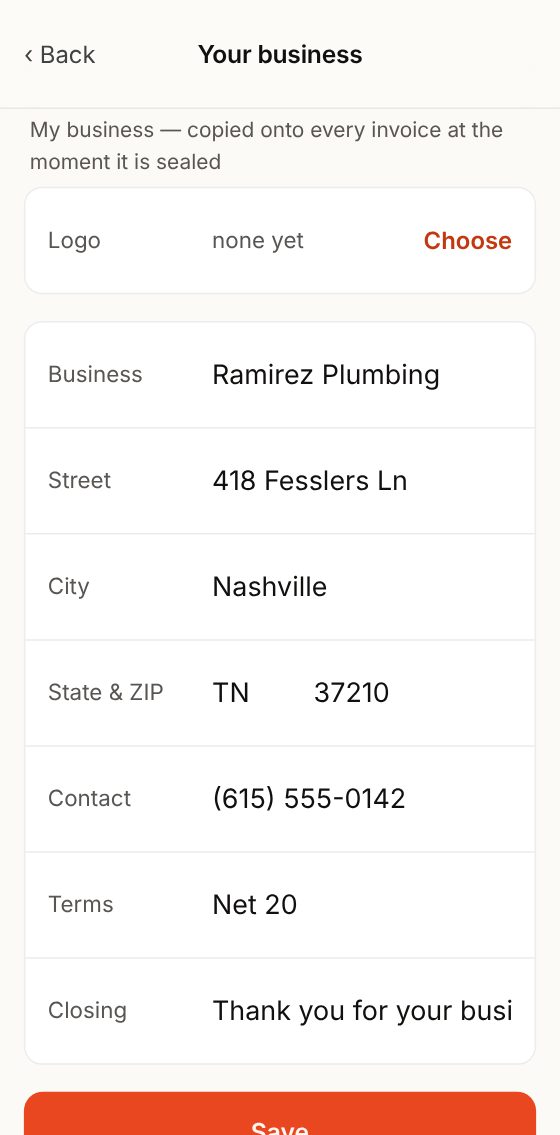
Settings, Your business: logo, name, address, contact and terms.
Settings → Your business
↑ Contents
2

Your customers

When you need it: A customer is the company or person who pays you. You add them once, and after that you just tap them.

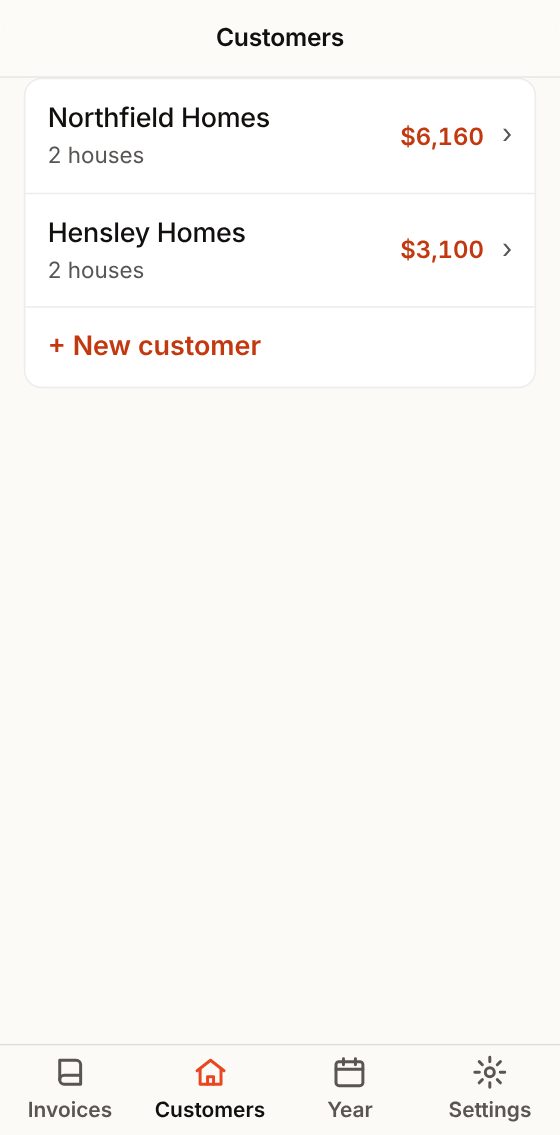
  1. Tap Customers. It is the second button at the bottom.What happens: You see your customers and what each one owes you.
  2. For a new one, tap + New customer.What happens: An empty page opens.
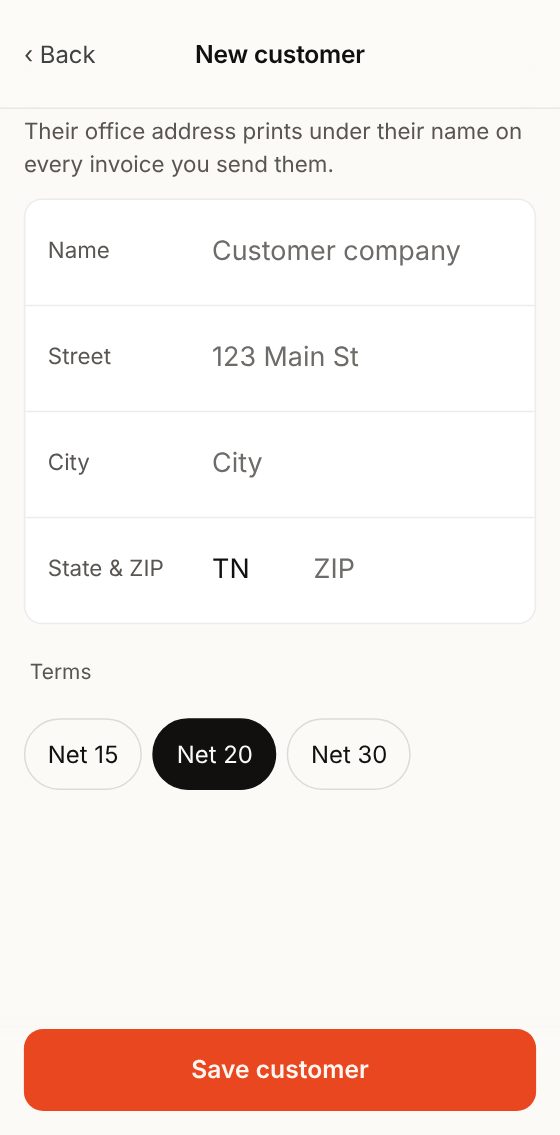
  3. Type the company name and their office address: Street, City, State & ZIP.What happens: Their name and address go on every invoice you send them, where it says who you are billing.
  4. Pick the Terms: how many days they have to pay you. For example, Net 20 means 20 days.What happens: The app counts the days and tells you when an invoice for this customer is past due.
  5. Tap Save customer.What happens: Your customer is now in the list.
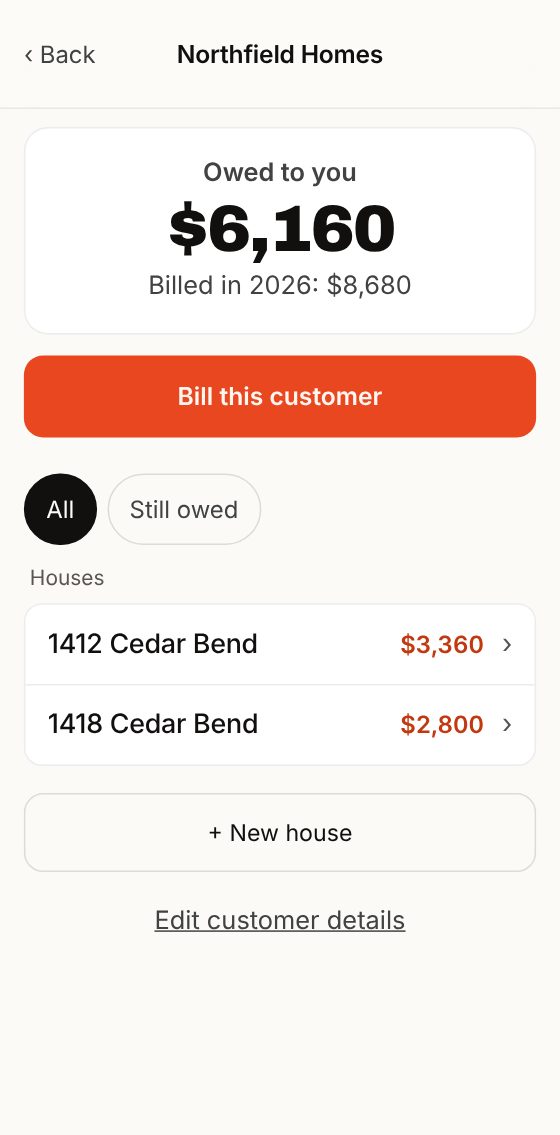
  6. Tap a customer in the list.What happens: You see what they owe you, their houses, and what they have paid you this year.

Made a mistake? Got their name or address wrong? Tap the customer, then Edit customer details. You can add their email there too, if you want. Invoices you already sent do not change.

Heads up: You can also add a customer while you make an invoice: tap + New customer right there.

The list of customers with what each one owes.
Customers: what each one owes
New customer: name, address and terms.
+ New customer
A customer: owed to you, billed this year, their houses.
A customer: what they owe and their houses
↑ Contents
3

Your houses or jobs

When you need it: A “house” is a job: the site where you work. Every invoice goes to a house, so you know what you have billed on each job. Not working on houses? Give it the name of the job.

  1. Tap Customers, then tap the customer.What happens: You see their houses.
  2. Tap + New house.What happens: A page for the house opens.
  3. In Name, write the house the way your customer knows it: the address, the lot number, or the owner’s name.What happens: That way your customer knows which job each invoice is for.
  4. Type the street and the city. Tap Save house.What happens: The house is now with your customer.
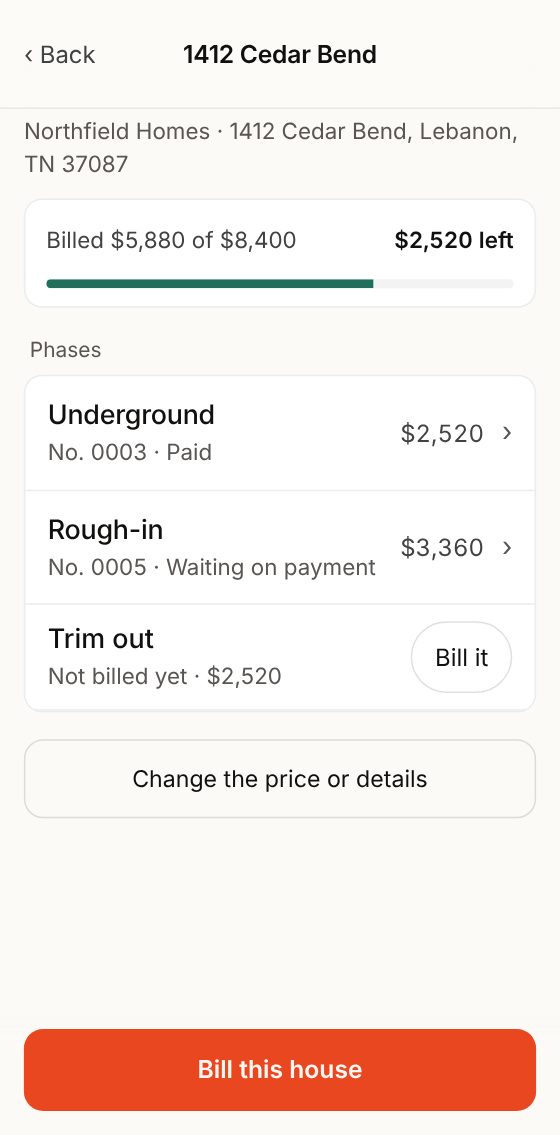
  5. Tap a house to see how it is going.What happens: You see what you have billed, what is left, and each part of the job with its Bill it button.

Made a mistake? Typed the name or address wrong? Open the house, tap Change the price or details, and fix it below, under Details.

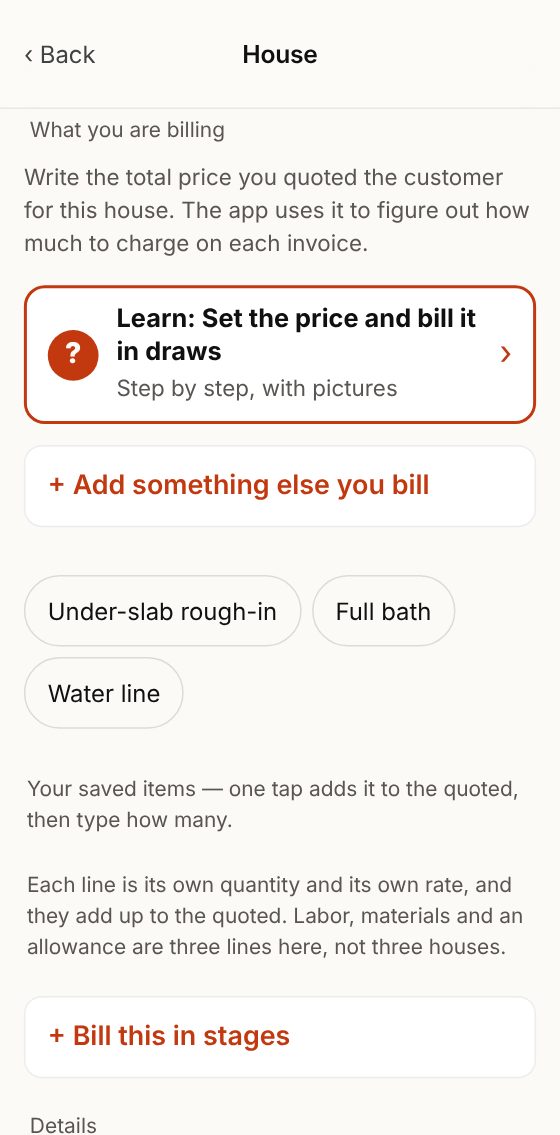
New house: what you are billing and the house details.
+ New house
A house: billed $5,880 of $8,400, each phase and the Bill it button.
A house: billed and what is left
↑ Contents
4

The price and the draws

When you need it: Use this if you get paid for a job in parts. For example: 30% when the under-slab work is done, 40% at rough-in and 30% at the end. You put the price in once and the app keeps track of what you have billed and what is left.

  1. Open the house and tap Change the price or details (on a new house it says Set a price or change details).What happens: The price of the house opens.
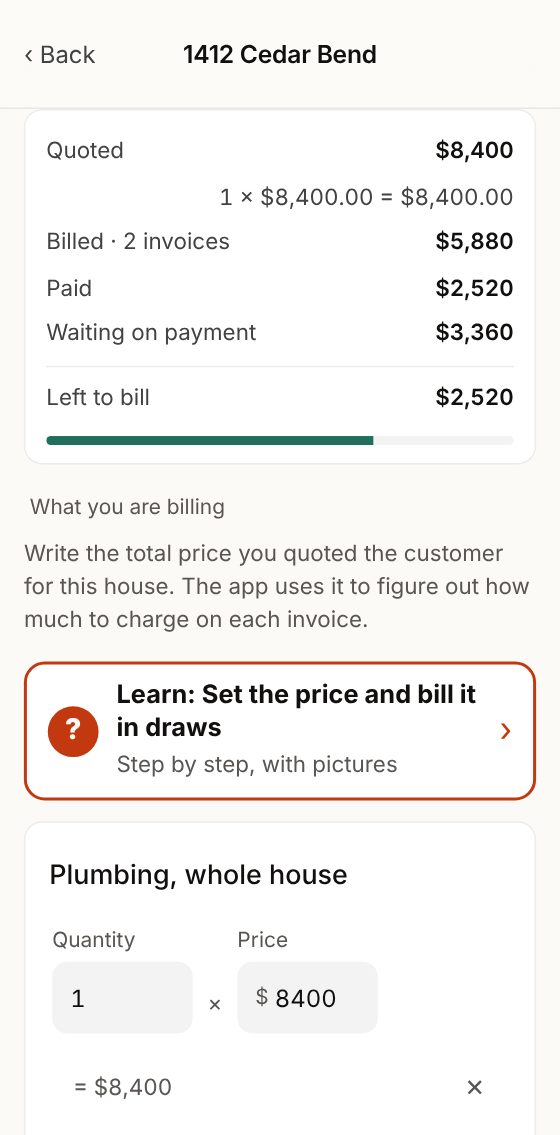
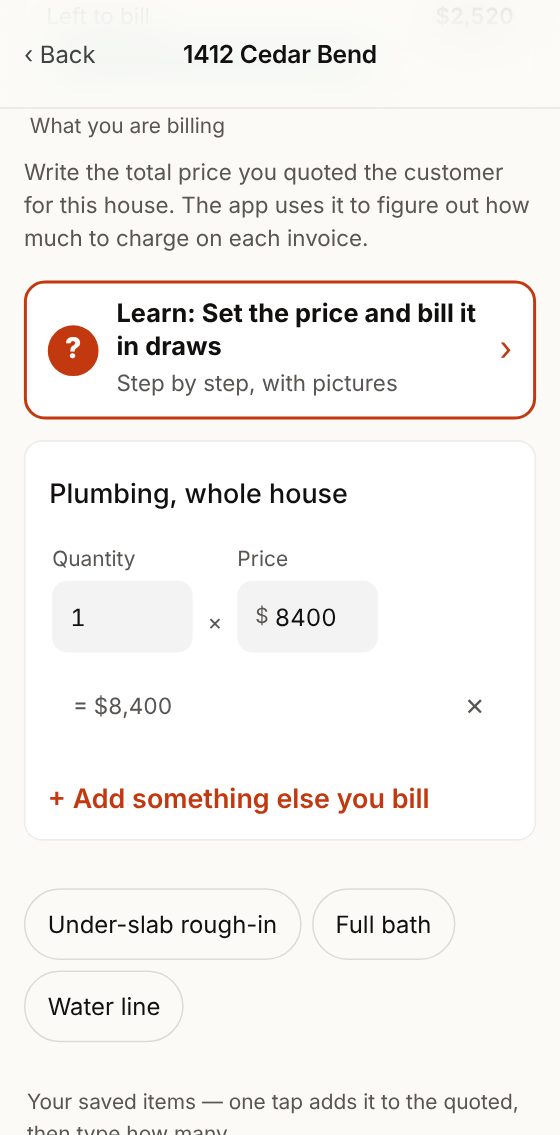
  2. In What you are billing, put the Quantity and the Price. If it is one price for the whole job, put 1 and the total.What happens: Below it you see the math, for example 1 × $8,400 = $8,400.
  3. Bill several things, like labor and material? Tap + Add something else you bill for each one.What happens: The app adds them up. That total is your quoted price.
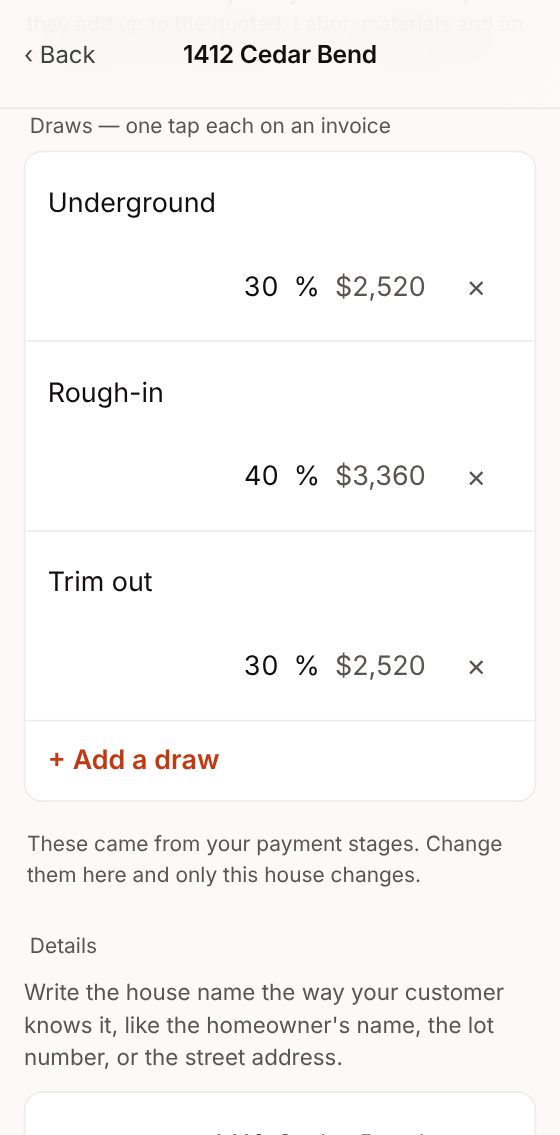
  4. Under Draws, put the percent for each part. Tap + Add a draw for another one. If you see no draws, tap + Bill this in stages.What happens: Next to each draw you see how much money it is.
  5. Tap Save house.What happens: When you make an invoice, each draw is a single tap.

Made a mistake? Did the price change? Change it here. Invoices you already sent do not change, and what is left to bill works itself out again.

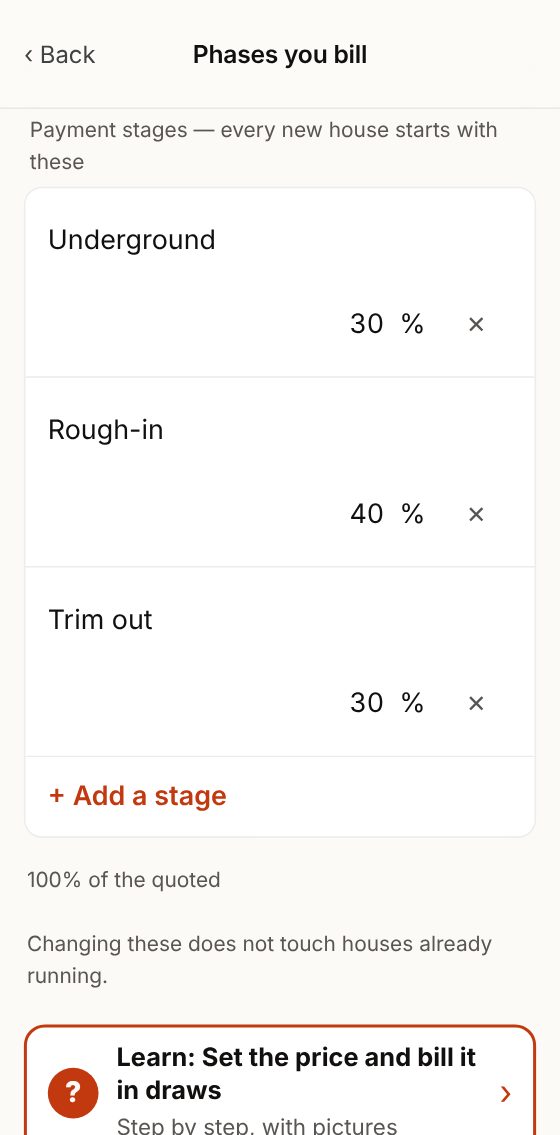
Heads up: The app says “draws” on some screens and “phases” or “stages” on others. Same thing: the parts you bill in. In Settings → Phases you bill you set the ones every new house starts with.

Quoted $8,400: billed, paid and left to bill.
The price of the house
Draws: 30%, 40% and 30% of the price, and + Add a draw.
The draws, each with its percent
Phases you bill: the ones every new house starts with.
Settings → Phases you bill
↑ Contents
5

Saved prices

When you need it: If you bill the same things often, save them once with their price. After that you just tap them instead of typing.

  1. Tap Settings, then Saved prices.What happens: You see your list. At first it is empty.
  2. Tap + Add a saved price.What happens: A new line appears.
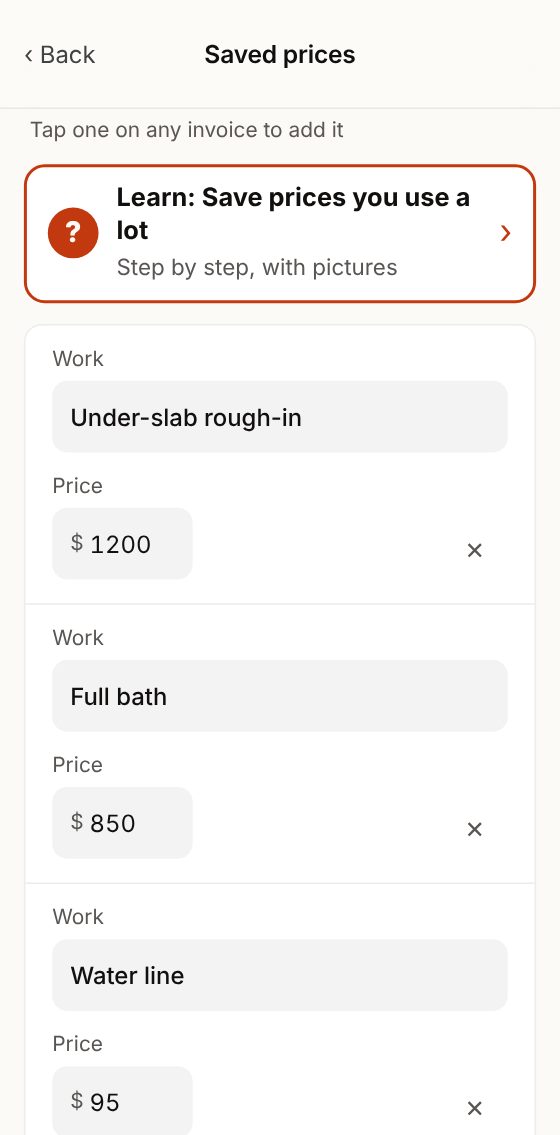
  3. In Work, type what it is. In Price, type what you charge for one.What happens: For example: Full bath, $850.
  4. Tap Save.What happens: That work now shows up as a button when you price a house and when you change an invoice. Tap it and type how many.

Made a mistake? Not using it anymore? Tap the ✕ to remove it. Removed it by mistake? Tap Undo right away.

Saved prices: the work and the price of each.
Settings → Saved prices
On the house price, your saved prices as buttons.
They show up as buttons on the house
↑ Contents
6

Send an invoice

When you need it: When you finish a job, or part of one, and want to get paid for it.

  1. Tap Invoices at the bottom, then the red Create new invoice button.What happens: The app asks you 4 questions, one on each screen.
  2. Who are you billing? Tap the customer.What happens: It goes to the next question.
  3. Which house? Tap the house or job.What happens: It goes to the next question.
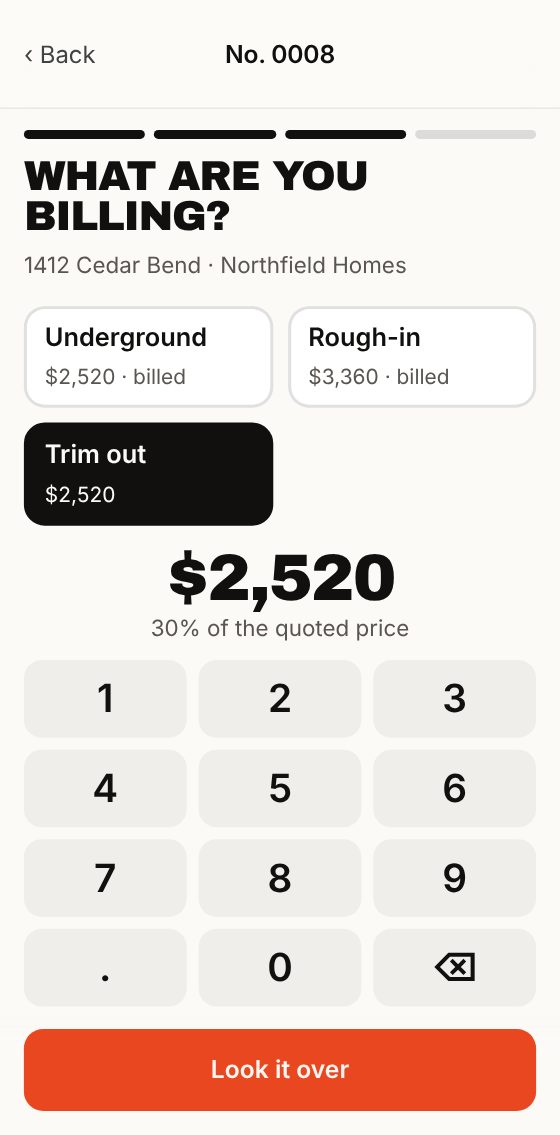
  4. What are you billing? Tap the part you finished, or type the amount on the number keys. Then tap Look it over.What happens: You see the whole invoice, the way your customer will see it.
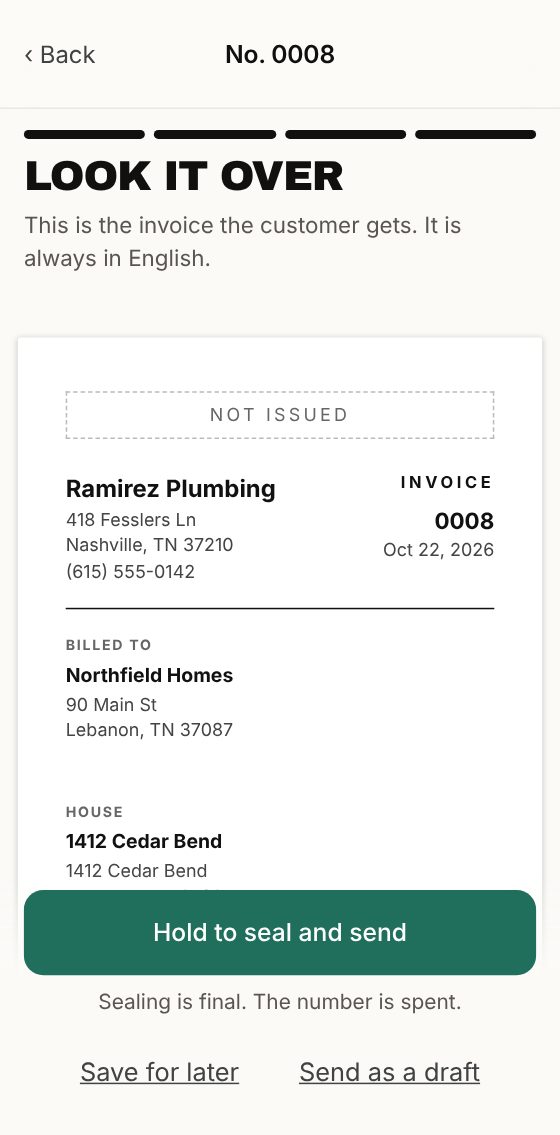
  5. Check everything. If it is right, press and hold the green Hold to seal and send button until it fills.What happens: The invoice gets its number. That is called sealing. From then on it cannot change.
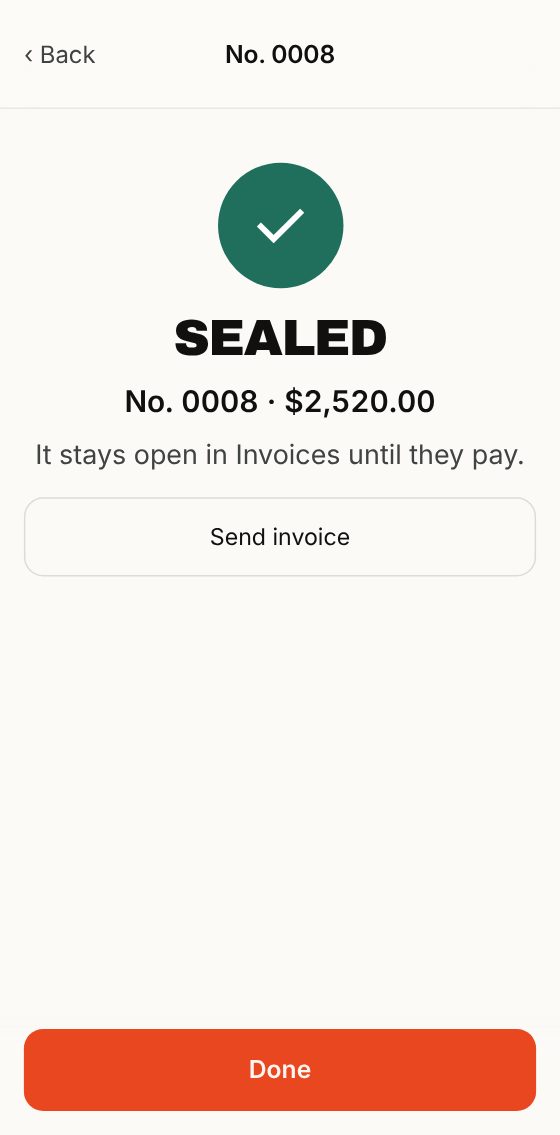
  6. The invoice opens. Tap Send and pick email, text or WhatsApp, and who it goes to.What happens: Your customer gets the invoice as a PDF.
  7. Closed the invoice without sending it? Tap Send invoice.What happens: It opens again so you can send it.

Made a mistake? Something is wrong and you have not sealed it yet? Do not hold the green button: tap Change lines, retainage or notes and fix it (part 7). Already sealed it? Issue a correction (part 8).

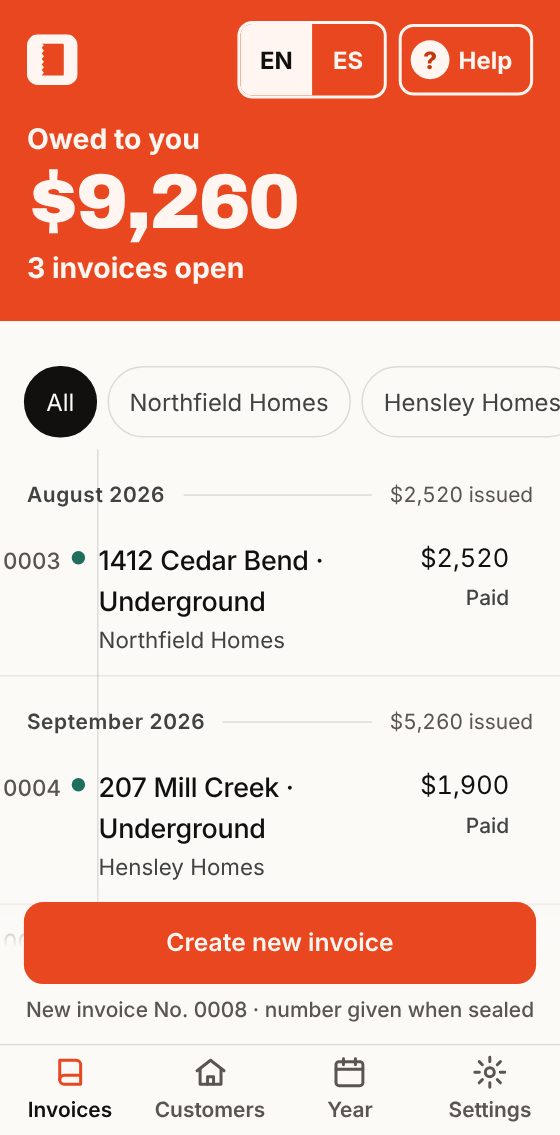
Invoices: owed to you $9,260 and the Create new invoice button.
1. Create new invoice
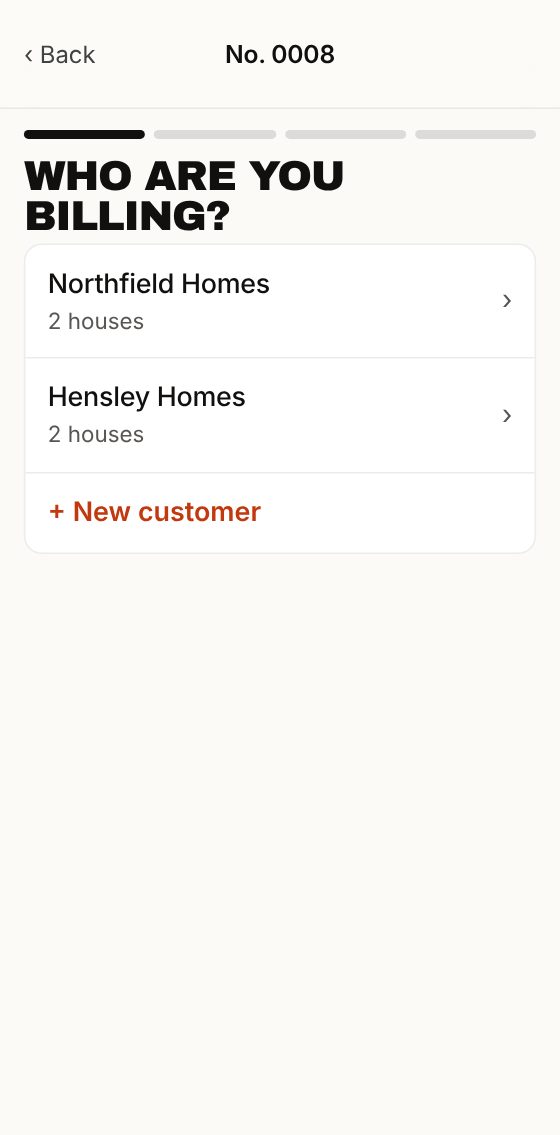
Who are you billing? The list of customers.
2. Who are you billing?
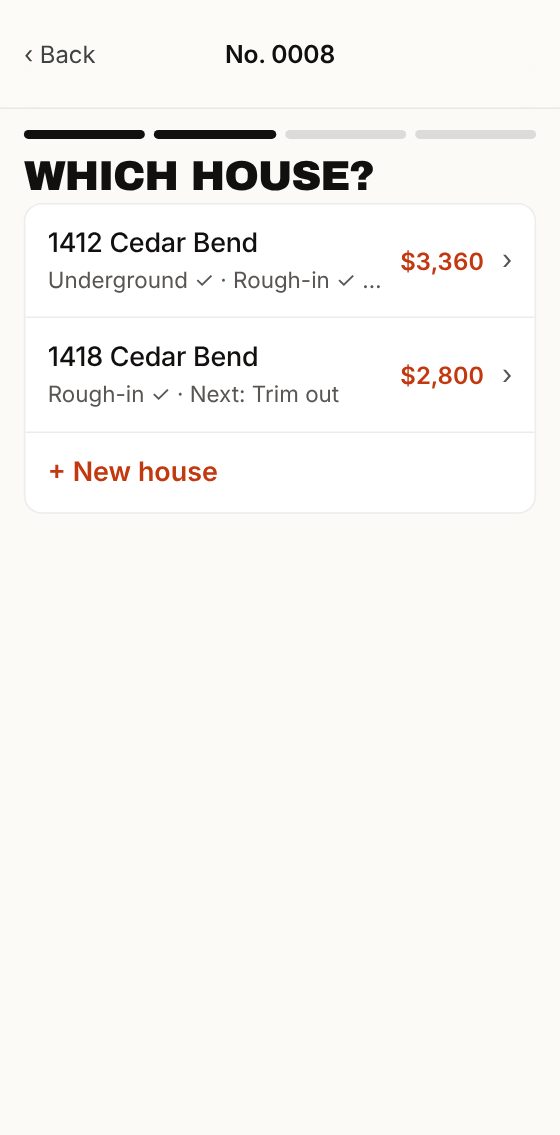
Which house? The customer’s houses.
3. Which house?
What are you billing? The draws and the amount.
4. What are you billing?
Look it over: the invoice and the green button.
5. Look it over and hold the green button
Sealed: No. 0008 for $2,520.00 and Send invoice.
6. Sealed. Send it.
↑ Contents
7

Change an invoice before you seal it

When you need it: Until you hold the green button, the invoice is not sealed and you can change anything. You can also save it and finish it later.

  1. On Look it over, tap Change lines, retainage or notes.What happens: You see the invoice in parts, with buttons to add things.
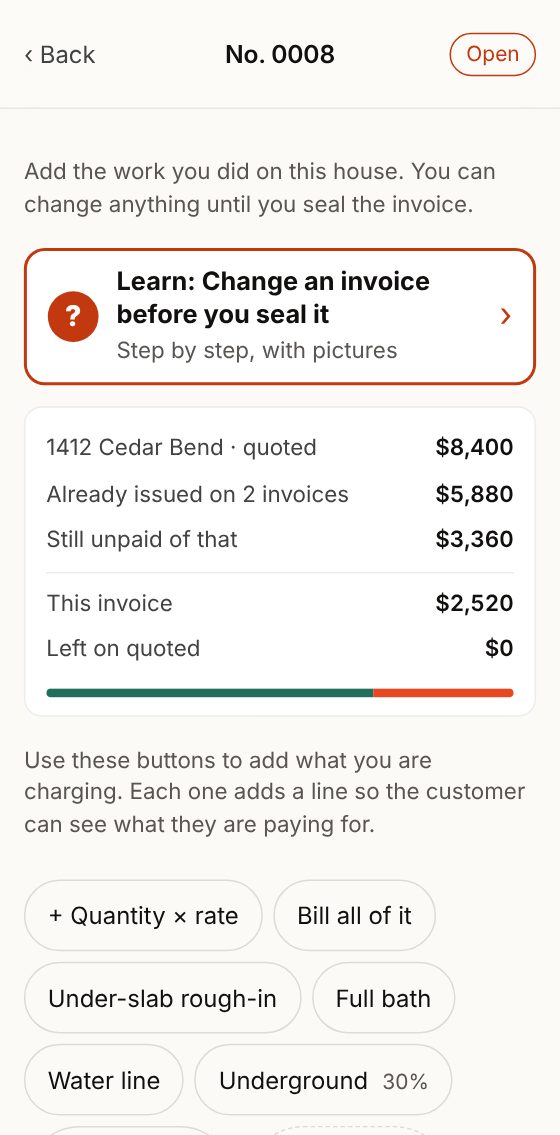
  2. To add something, tap a button: + Quantity × rate, Bill all of it, a draw or a saved price.What happens: A line is added and the total changes by itself.
  3. To remove a line, tap the ✕ on that line.What happens: It is removed and the total goes down.
  4. Does your customer hold back a percent until the job is done? Tap + Retainage and type the percent.What happens: The invoice shows what is held back and what they pay you now.
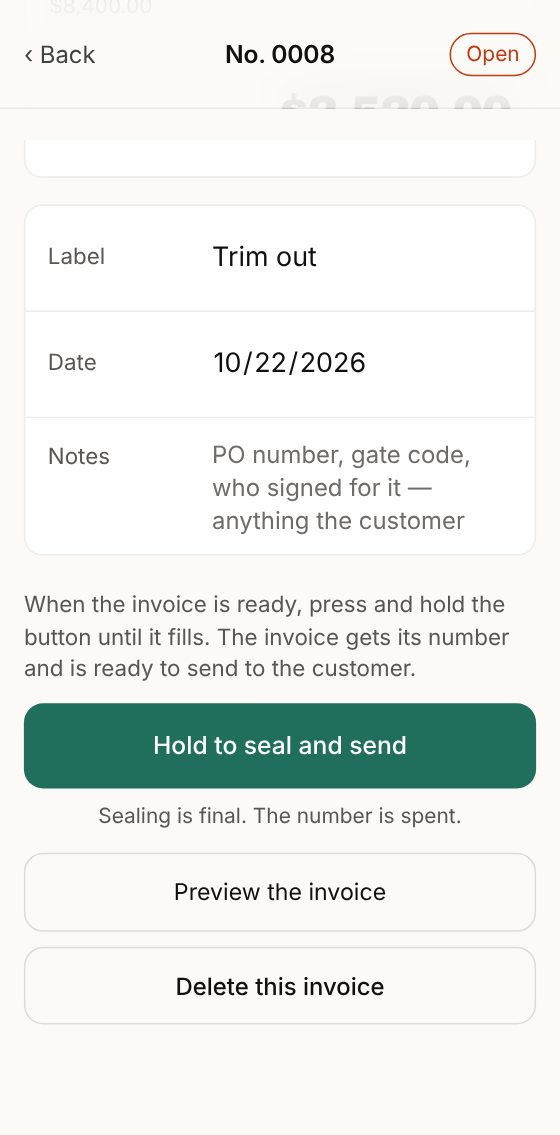
  5. In Notes, type what your customer should read: PO number, gate code, who signed for it.What happens: It shows on the invoice.
  6. Not ready? On Look it over, tap Save for later.What happens: The invoice waits in Invoices with the word Open. Tap it when you want to pick up where you left off.

Made a mistake? Do not need that invoice anymore? Open it and tap Delete this invoice. You can only do this with invoices you have not sealed.

Changing the invoice: buttons to add lines, draws and saved prices.
The buttons that add lines
The total, the date, the notes, the green button and Delete this invoice.
The total, the notes and the green button
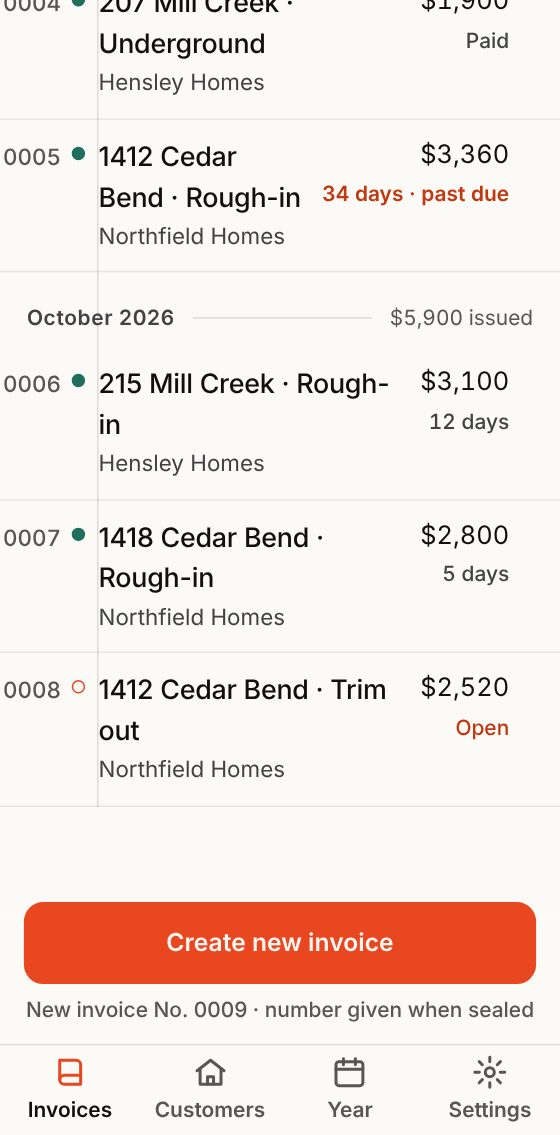
In Invoices, No. 0008 says Open.
Saved for later: it says Open
↑ Contents
8

Already sealed? Correct it or void it

When you need it: A sealed invoice does not change, just like a page you already tore out of the book. If it has a mistake, you issue a correction. If it should never have existed, you void it.

  1. Tap Invoices and tap the invoice.What happens: The invoice opens.
  2. Tap More.What happens: You see everything about the invoice, and more buttons below.
  3. Has a mistake? Tap Issue a correction.What happens: A new invoice opens, with its own number and everything from the original. Change what was wrong, look it over and seal it. The original is not deleted.
  4. Should it never have existed? Tap Void this invoice, type why, and tap Void this invoice again.What happens: The invoice says Void. Its number stays in the list, so your numbers still go in order.

Made a mistake? Tapped Void this invoice by mistake? Before the second tap, tap Keep it and nothing happens.

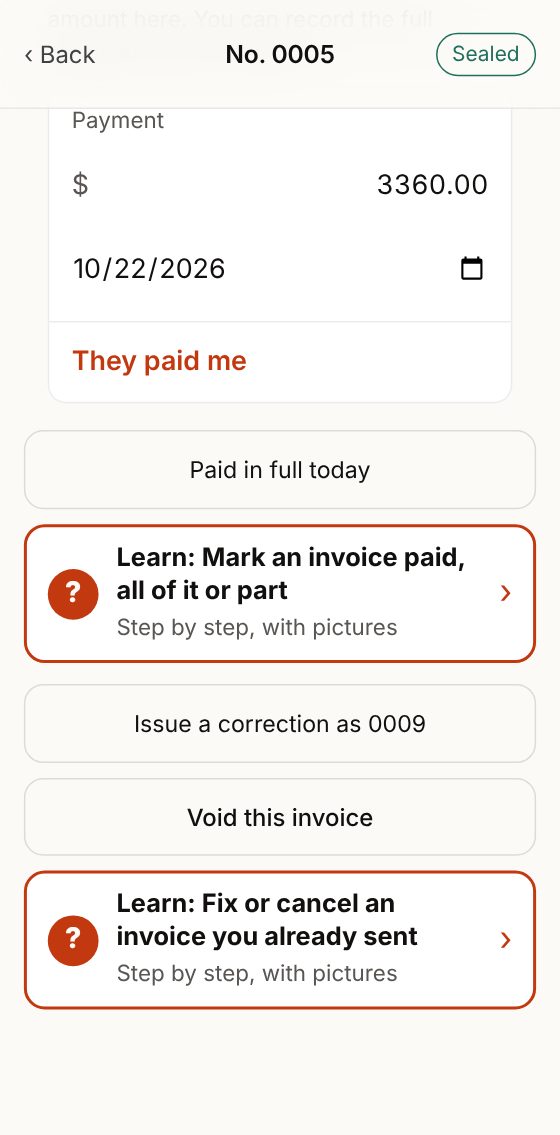
More: the payment, Issue a correction and Void this invoice.
More: correction and void
↑ Contents
9

When they pay you

When you need it: When your customer pays you, mark it in the app. That way you always know who owes you and how much.

  1. Tap Invoices.What happens: At the top you see what you are owed in total. The ones past their days say past due.
  2. Tap the invoice they paid.What happens: The invoice opens.
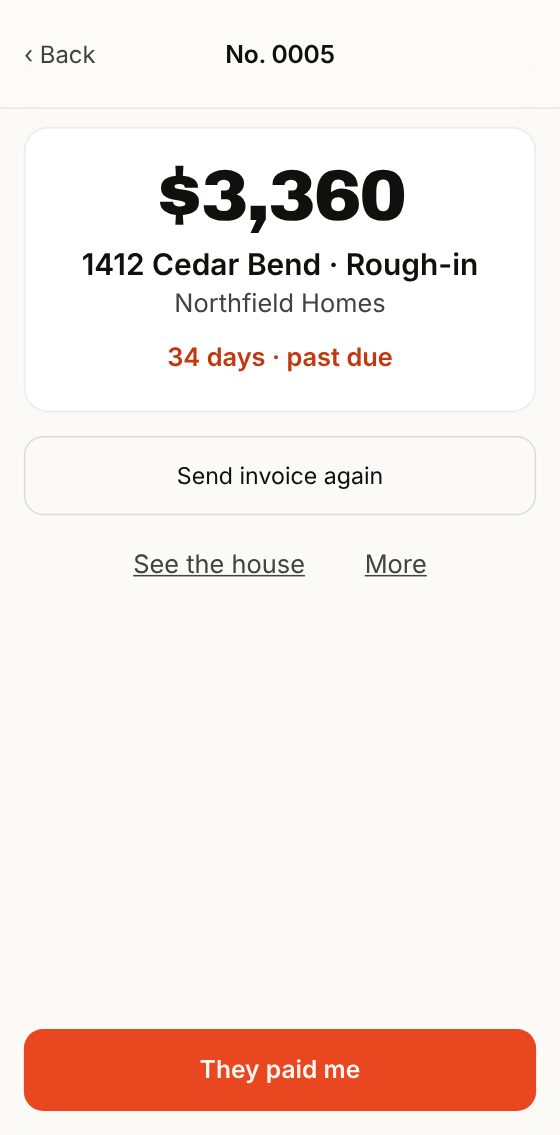
  3. Paid all of it? Tap They paid me.What happens: The invoice says Paid and what you are owed goes down.
  4. Paid only part of it? Tap More. In Payment, type what they paid and tap They paid me.What happens: The invoice says Part paid and you see how much is left.
  5. Your customer lost the invoice? Tap Send invoice again.What happens: The same invoice goes out, with the same number.

Made a mistake? Tapped They paid me but they had not paid? Tap Not paid yet, then tap again. It goes back to owed.

Invoice 0005, past due, with They paid me.
The invoice: They paid me
More: type the payment and tap They paid me.
Part of a payment: More → Payment
↑ Contents
10

Your year, for taxes

When you need it: For taxes. The app adds up your whole year, no paperwork.

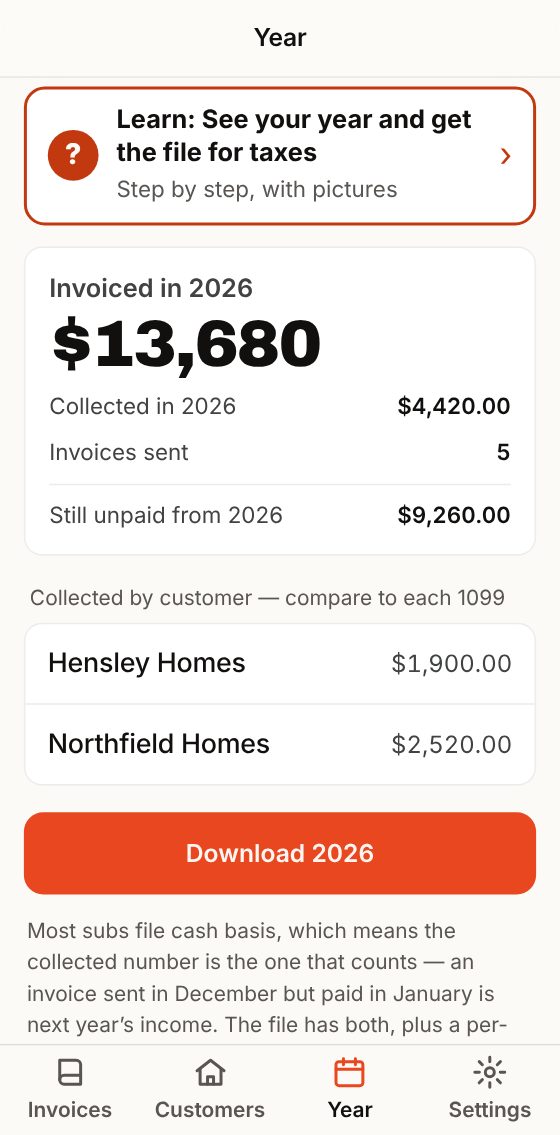
  1. Tap Year. It is the third button at the bottom.What happens: You see what you invoiced, what you collected, and what is still unpaid.
  2. Look below, where it says collected by customer.What happens: That is what each customer paid you. Check it against the 1099 each one sends you. If it does not match, look into it before you file.
  3. Tap Download.What happens: A file with your whole year is saved. Send it to your tax preparer.

Made a mistake? Before you download, mark as paid the invoices you have already been paid for. If not, what you collected comes out short.

Year: invoiced, collected, unpaid and collected by customer.
Year
↑ Contents
11

More settings

When you need it: Things you do once, or almost never. They are all in Settings.

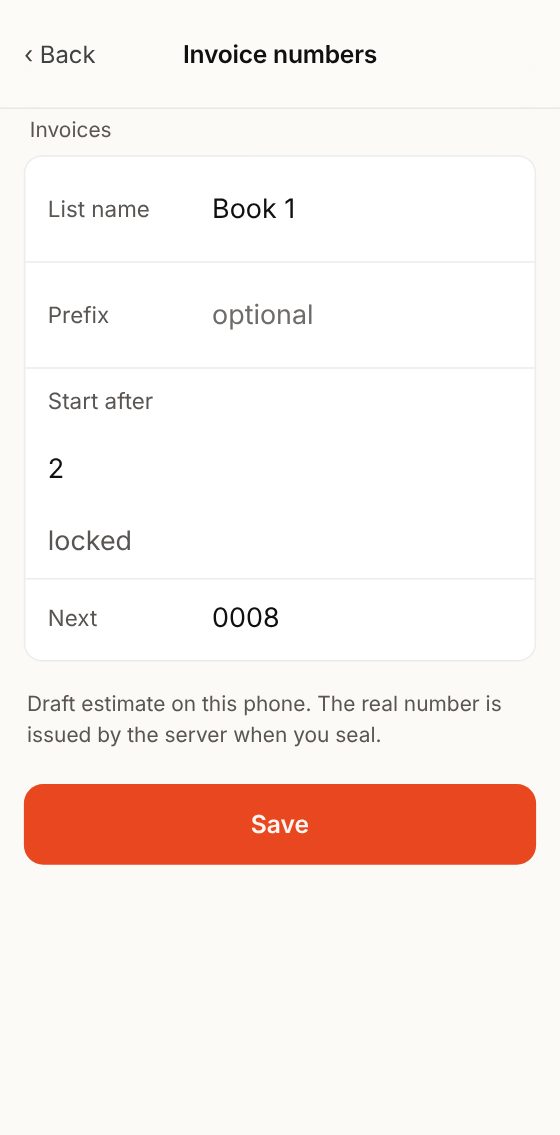
  1. Invoice numbers: coming from a paper book? In Start after, type your last number.What happens: Your first invoice in the app picks up with the next number. After that it locks, so numbers never repeat.
  2. Language: pick English or Spanish.What happens: The words in the app change. Your customer’s invoice is always in English.
  3. Account: new phone, or someone helps you? Sign in with your same email and password.What happens: You see the same invoices on both phones.
  4. Backup: tap Back up your invoices to a file.What happens: A copy of all your invoices is saved on your phone.

Made a mistake? Lost your phone? You lose nothing: your invoices are in your account. Sign in with your email and password on another phone.

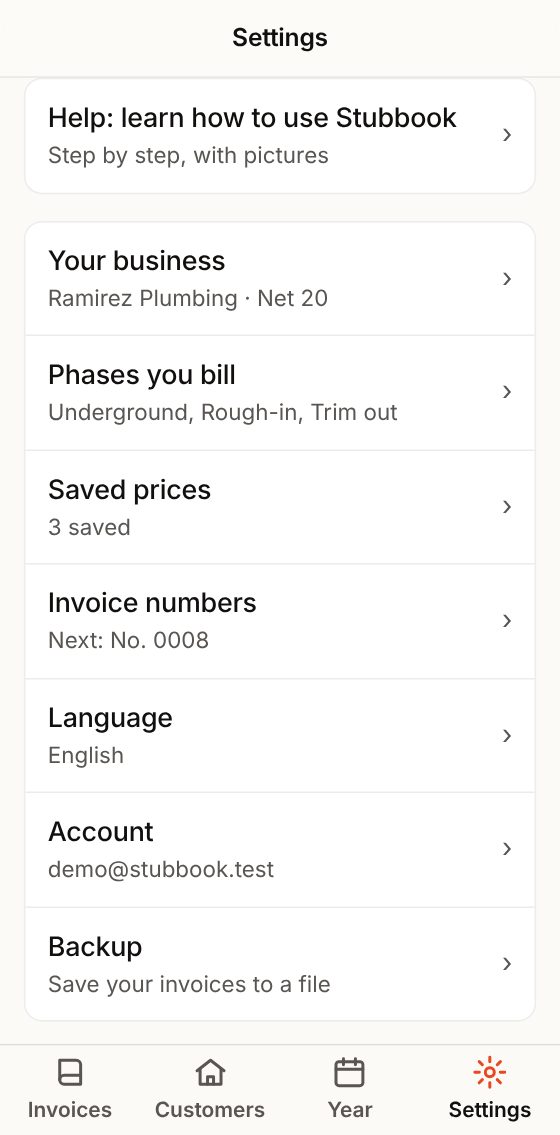
Settings: your business, phases, saved prices, numbers, language, account and backup.
Settings
Invoice numbers: start after and the next number.
Invoice numbers
↑ Contents
?

Quick questions

Do I need internet?

Yes. Everything you type is saved to your account right then. If the signal drops, what you typed stays on the screen and a bar shows at the top. When you have signal, tap Try again. Do not close the app until it says Saved.

What do the words in the app mean?

Invoice: the paper you send your customer to get paid. Seal: give the invoice its number; after that it cannot change. Open: an invoice you have not sealed yet. Past due: the days to pay you have run out. Draw or phase: a part of the job you bill on its own. Quoted: the total price you gave your customer. Retainage: money your customer holds back until the end.

Can I use it on two phones?

Yes. Sign in with the same email and password. Both see the same invoices, and a number is never used twice.

Can I use the app in Spanish?

Yes. Tap ES at the top of Invoices, or go to Settings → Language. Your customer still gets the invoice in English.

Can I delete a sealed invoice?

No. You void it and the number stays in its place, like in the paper book. Invoices you have not sealed can be deleted.

What if I do not work on houses?

A “house” is any job. Give it the name your customer uses: the address, the owner, or the business.

Where do I find this guide in the app?

At the top of Invoices, tap Help. You see every topic in plain words; tap one and it opens here. It is in Settings too. And on the screens that raise the most questions there is a box that says Learn: tap it to go straight to that part.

Forgot your password?

On the sign-in screen, tap Forgot your password?. You get an email; open it and set a new password.

Stuck on something?

Reply to any Stubbook email and we will help you send your invoice.

Open Stubbook